


変更履歴
v1.5.0
- ショートカットのアップデートは一切なく、バージョン番号も変更していません。主に誤字を修正し、Apple Watchとの連携に関する情報を説明を更新しました。これは想定していませんでした。 Shortcutyにおいて、「アップデート」として。! ご迷惑をおかけして申し訳ありません。!
コンテンツ
## “Rename Me Folder Menu”
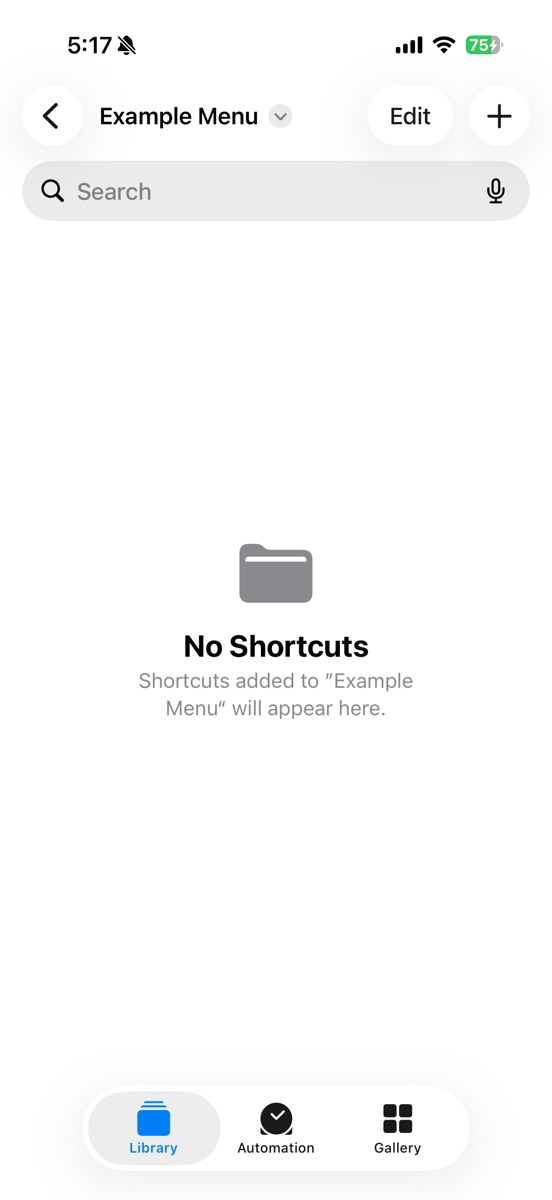
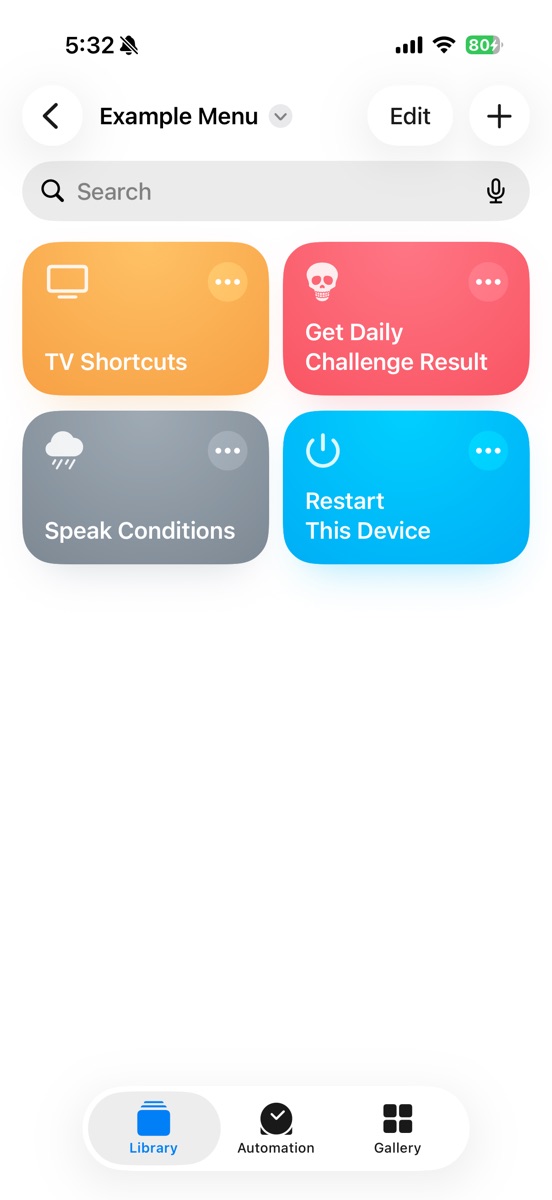
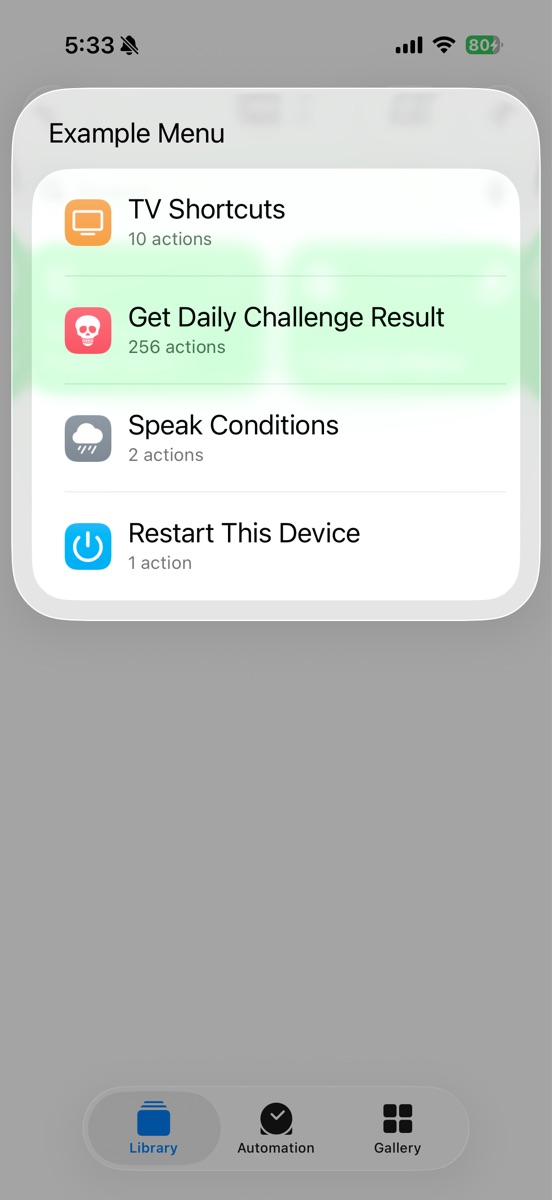
Make menus of shortcuts by simply renaming Rename Me Folder Menu to a Shortcuts folder name. Add, remove and rearrange right in the Shortcuts app, not a clunky menu interface. With iCloud syncing enabled in Shortcuts your menus even sync across all your devices automatically.
In spite of it all, sometimes you need to reinvent the wheel. Or so I’d like to think.
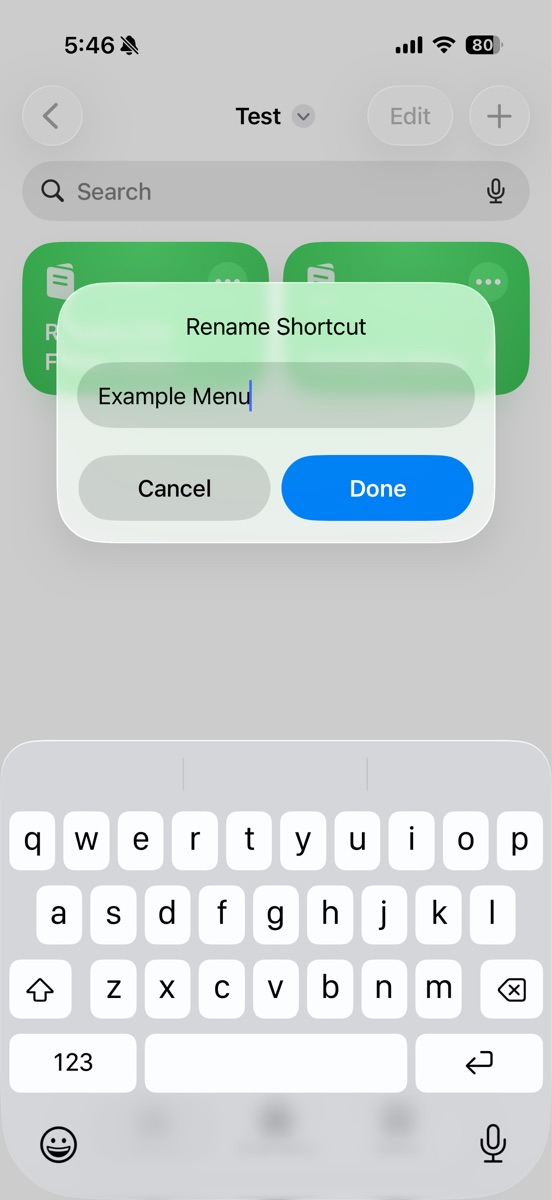
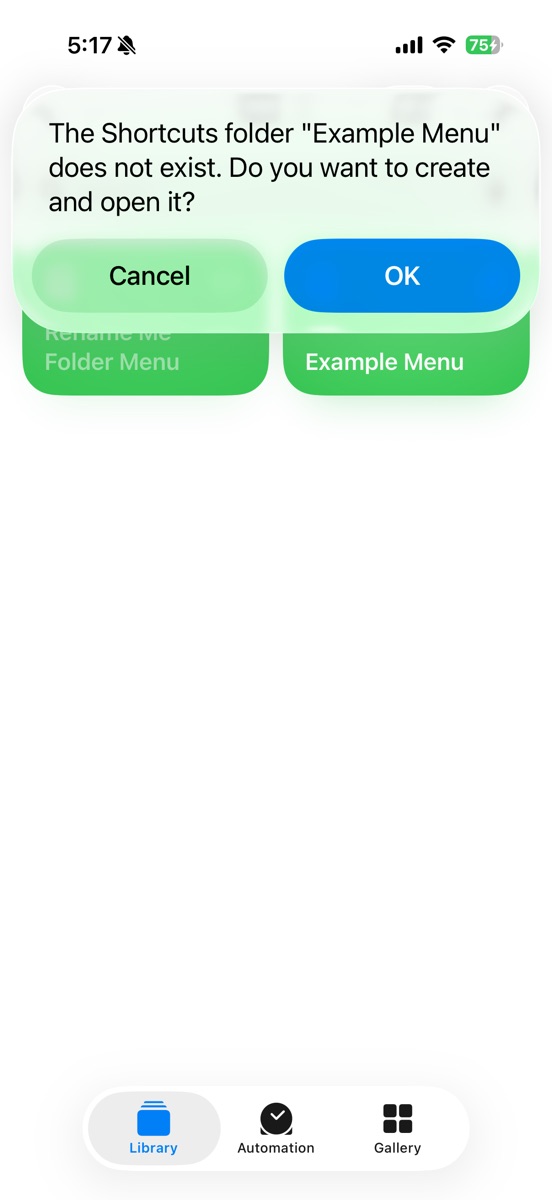
To use simply press and hold on this shortcut and select Rename. Set the name to an existing Shortcuts folder or a folder you’d like it to create for you. Run the renamed Shortcut to use your menu. Add, remove and rearrange your menu at any time via the familiar shortcuts UI.
To create submenus, duplicate the shortcut, give it a new name and put that shortcut in your existing Rename Me Folder Menu’s folder. Easy as pie. Preferably pumpkin pie with a metric ton of whipped cream.
One obvious use if you have a Pro phone is to have it run when you press the Action Button, but you can also save it to your Home Screen, launch it via widget, etc.
Another good use is for Apple Watch. Make a Rename Me Folder Menu or menus of Shortcuts that work on Apple Watch and then in the Shortcuts app make only those Rename Me Folder Menus visible on Apple Watch, not even the Shortcuts within those menus or even any submenus you put in them. All the Shortcuts and submenus within those top level Rename Me Folder Menu(s) *will* be visible, in the order you organized them, but will not clutter up your Apple Watch Shortcuts app - they only appear in your menus.
Any issues? Report them and I will fix it!
スクリーンショット
インフォメーション
コメント
会話を始める
コメントはまだありません。 コメントを投稿する









で にコメントを投稿してください。